How to Turn an Interior Collage into a Photorealistic Render with AI
Step by step: picking items, building the collage, the prompt, choosing a model, variants and 4K. What AI keeps from a collage and what it changes – shown on two real projects.
· 7 min read · CreateViz AI
A collage is a familiar interior design tool: furniture, lighting and materials in one picture. Clients find it hard to imagine the room from it. AI turns such a collage into a photorealistic interior with the same furniture – in about a minute. Below: how to do it step by step, and what the AI keeps from the collage and what it changes. The examples are two real projects.
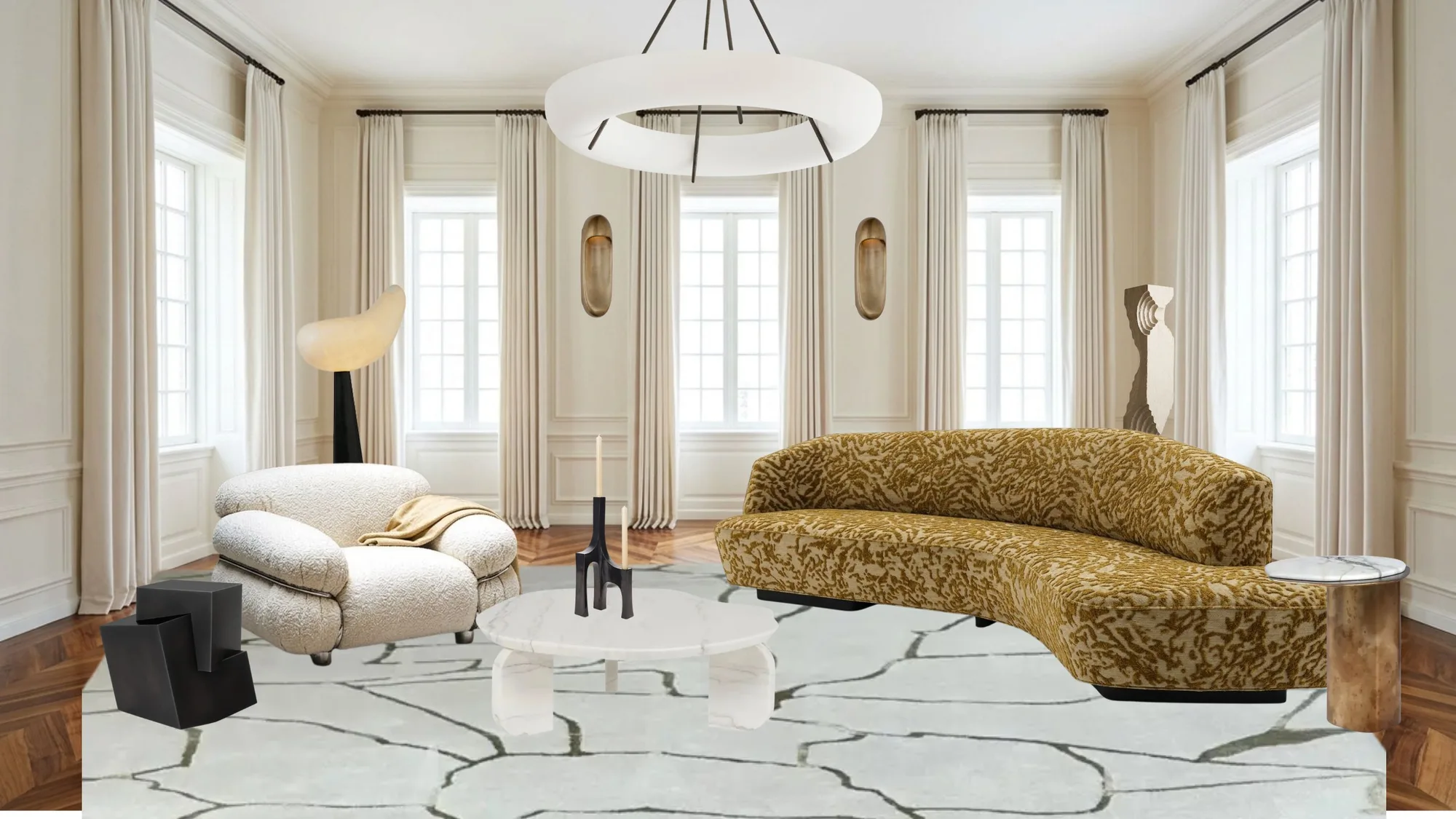
Collage
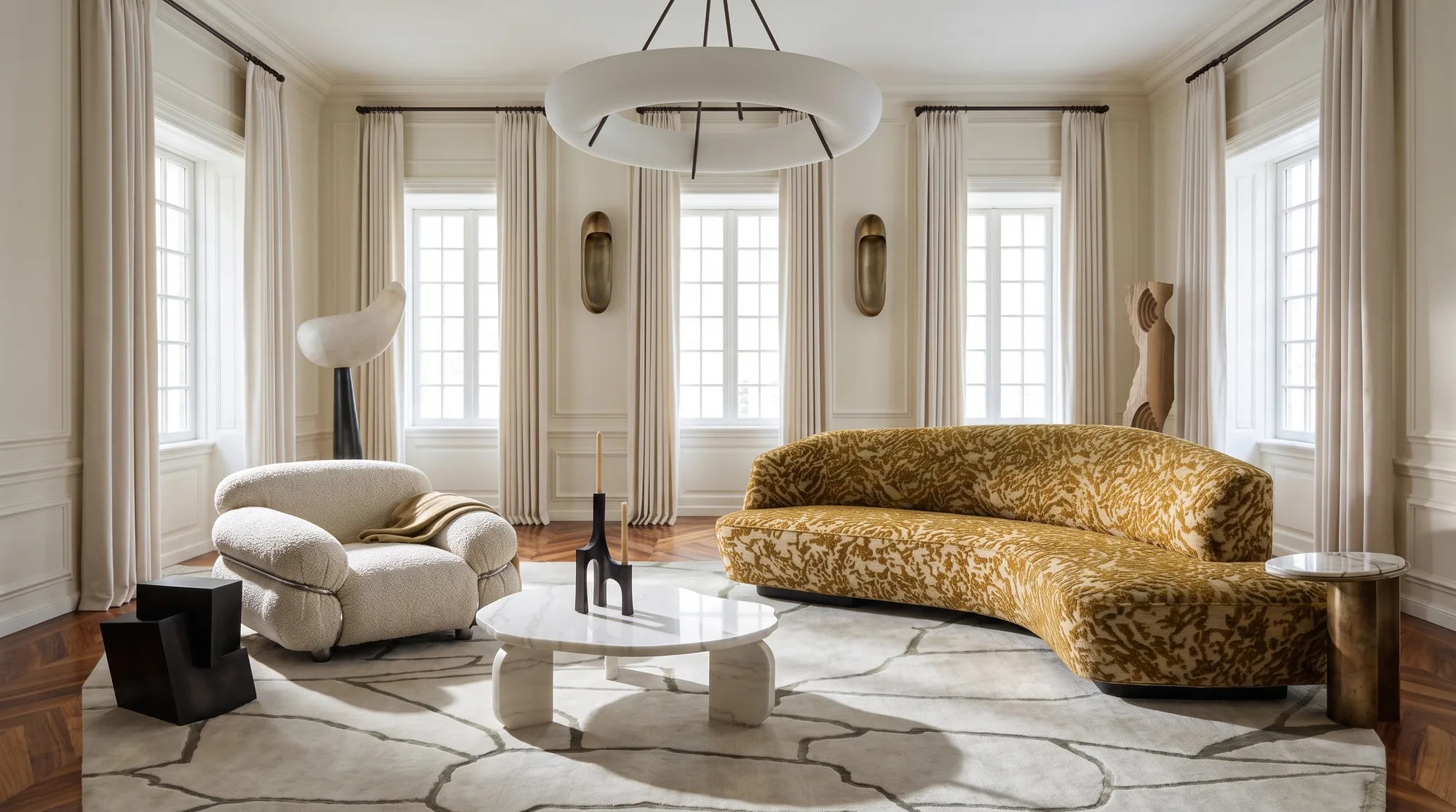
AI photo
Step 1. Pick the items
Start with the essentials: a sofa or bed, armchairs, a table, lighting, a rug and 2–3 decor pieces. The fewer random small things, the more accurate the result – the AI won't have to guess what matters.
- Photograph each item whole, with no cropped edges, ideally on a light plain background – it makes background removal cleaner.
- Shoot from roughly the angle you will view the room from: a sofa shot from above is harder for the AI to put on the floor.
- Use a base – a room photo, a wall with windows, or at least a floor and walls in the right color. Without a base the AI will invent the room.
Step 2. Build the collage
Open the collage editor and add the base and items. Each item's background is removed with one button – up to 50 times a day. Then arrange them.
- Put items on the base floor: sofa legs on the floor line, not in mid-air.
- Keep the scale: an armchair smaller than the sofa, a floor lamp taller than the table. The AI takes proportions from the collage.
- Far items go higher and smaller, near items lower and larger. That's how the AI reads perspective.
- Labels, prices and item codes are for the client, not for the AI. Remove them for generation: the AI may try to paint the text into the room.
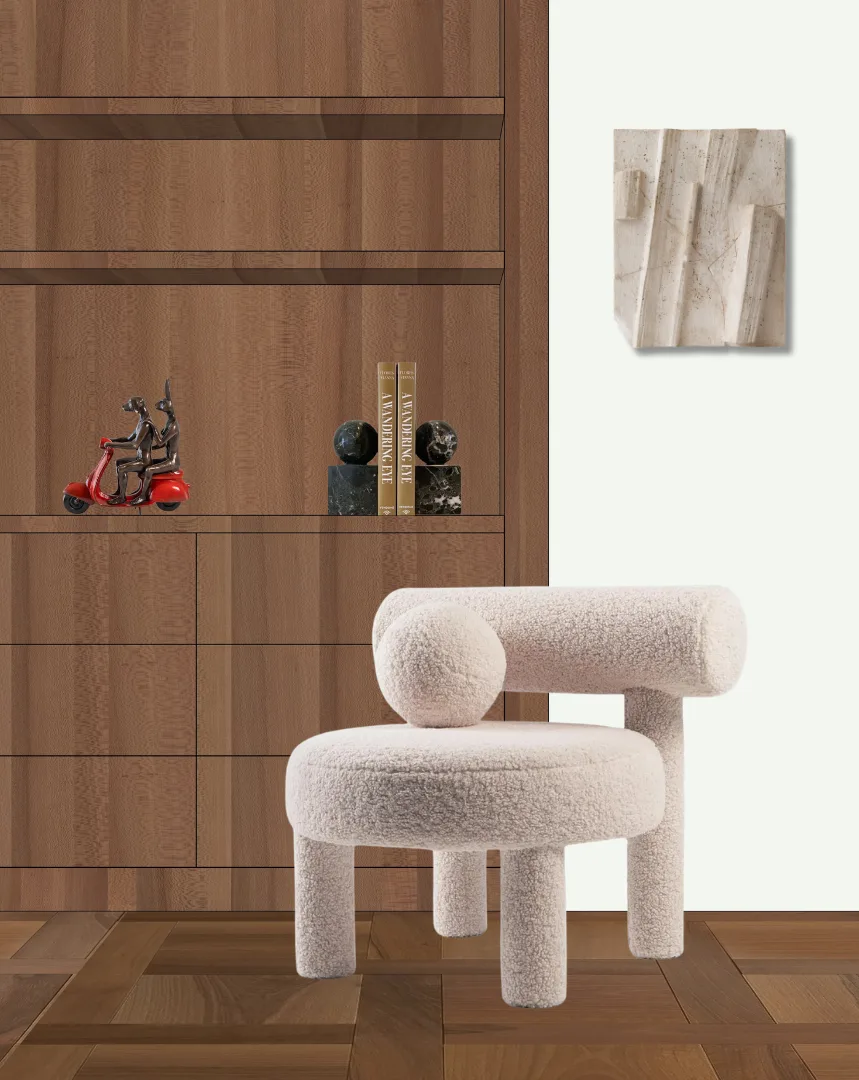
Collage
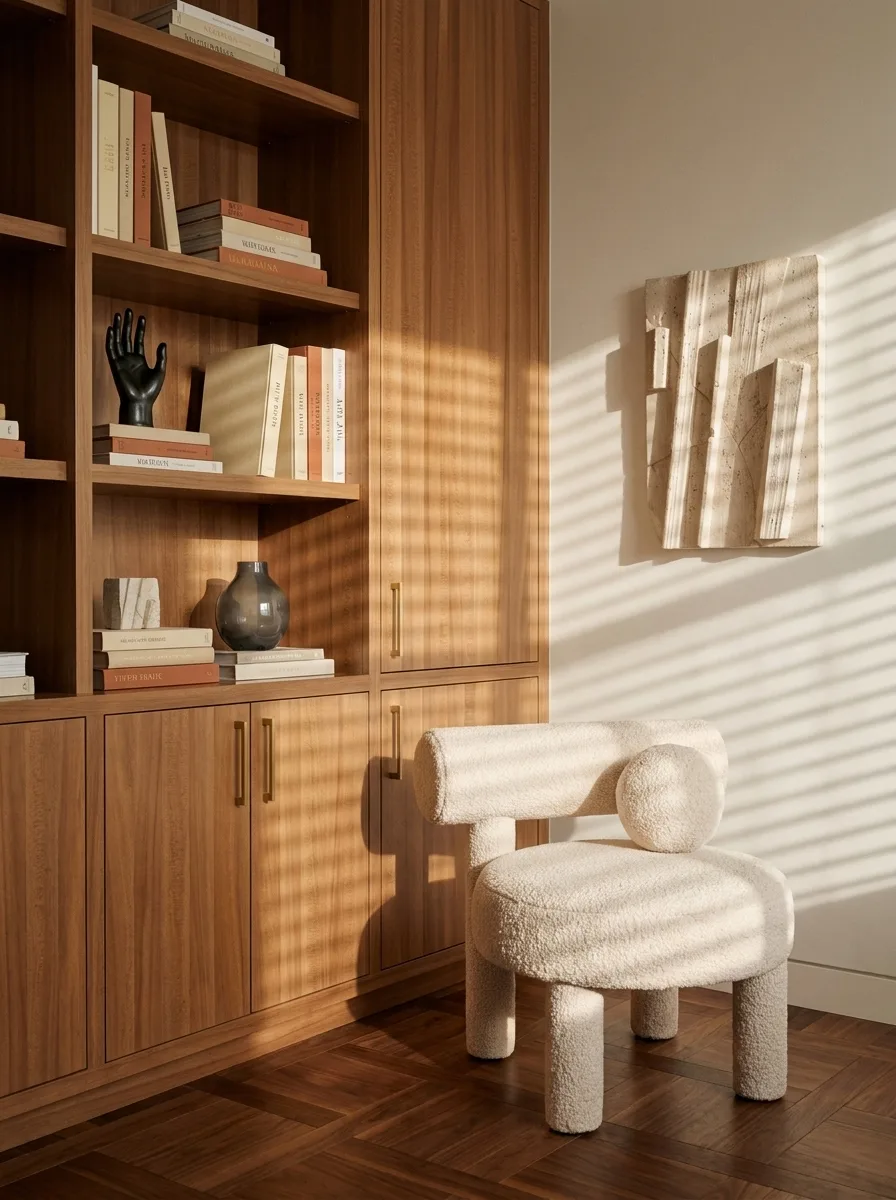
AI photo
Step 3. Send it to generation and pick a prompt
In the editor, press “Generate” – the collage opens in the generator. Then there are two ways: a ready-made prompt or your own request.
Alina Lyutaya's ready-made prompts for collages:
| Prompt | What you get | Model |
|---|---|---|
| Collage → soft sketch | A calm architectural sketch with soft grainy graphics. Furniture, light and windows stay as in the collage. | Nano Banana Pro |
| Collage → marker & watercolor sketch | A hand sketch for your portfolio: fineliner lines, marker shading and watercolor fading into the paper at the edges. | GPT Image 2.5 |
| Collage → light watercolor sketch | The same hand sketch, but light and airy: lots of white paper, cool grey shadows, no warm tint. | GPT Image 2.5 |
| Collage → clean 3D sketch | Brings the collage furniture into one perspective: crisp lines, one window light, volume through light and shade. | GPT Image 2.5 |
| Collage → editorial photo | A photorealistic vertical 3:4 shot: compressed perspective, side window light. For editor collages. To turn a finished render into a photo, use GPT Image 2.6 | Nano Banana Pro |
The prompt's model is the default; you can change it.
Keep your own request short and specific: which room, where the light comes from, which angle, and above all – “keep the furniture, materials and layout as in the collage”. For example:
Step 4. Choose the AI model
Models keep details differently and cost differently. Price per image, in brackets – in money on the “Start” plan:
| Model | Standard resolution | 4K | Photos per request |
|---|---|---|---|
| Nano Banana Pro | 2K: 10 credits ($0.37) | 15 credits ($0.55) | up to 8 |
| GPT Image 2.5 | 2K: 5 credits ($0.18) | 10 credits ($0.37) | up to 8 |
| GPT Image 2.6 | 1.5K: 5 credits ($0.18) | – | up to 8 |
| Nano Banana 2.1 | 2K: 5 credits ($0.18) | 6 credits ($0.22) | up to 8 |
| Nano Banana 2 Lite | 1K: 2 credits ($0.07) | – | up to 8 |
Prices are taken from the service settings today.
A practical way: first 2–3 drafts in an affordable model, then the best one in the model that keeps details better (the “Collage → editorial photo” prompt uses Nano Banana Pro by default). If an item matters, add its separate photo to the request – up to 8 photos in total, depending on the model. Model comparison.
Step 5. Make variants and refine
One generation is one attempt. Make 2–3 variants: the AI places light and camera slightly differently each time. Don't like a detail? Add one clarification to the request (“floor lamp to the right of the sofa”, “warm evening light”) and send again: the collage and text stay in the field.
Step 6. Download in the resolution you need
Standard resolution is enough for screens and messengers. For large-screen presentations and print, use 4K: choose it before sending, or upscale a finished image with “Download in 2K / 4K” (for models that support it).
- Nano Banana Pro: upscale to 4K – 10 credits
- Nano Banana 2.1: upscale to 2K – 4 credits, to 4K – 5 credits
What the AI keeps and what it changes
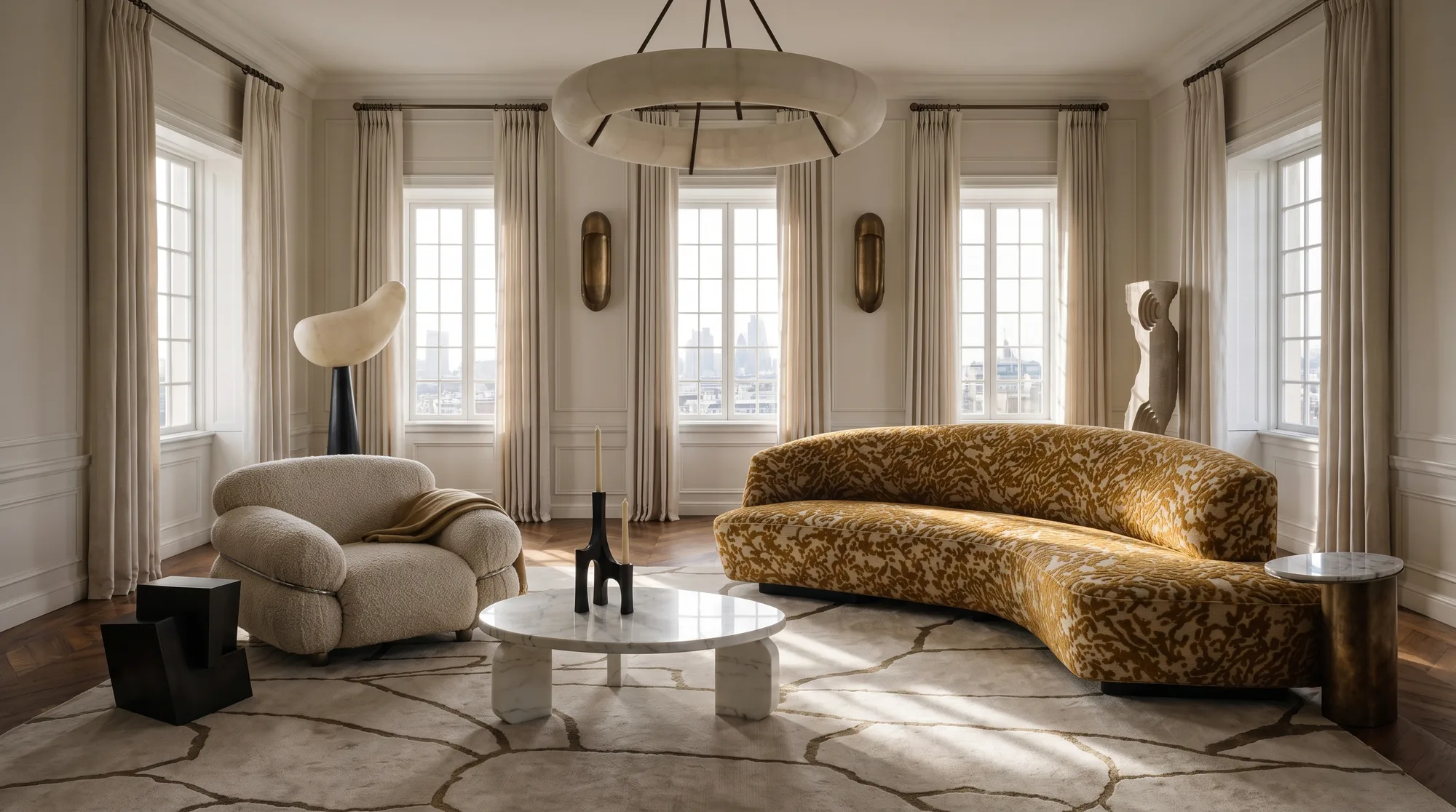
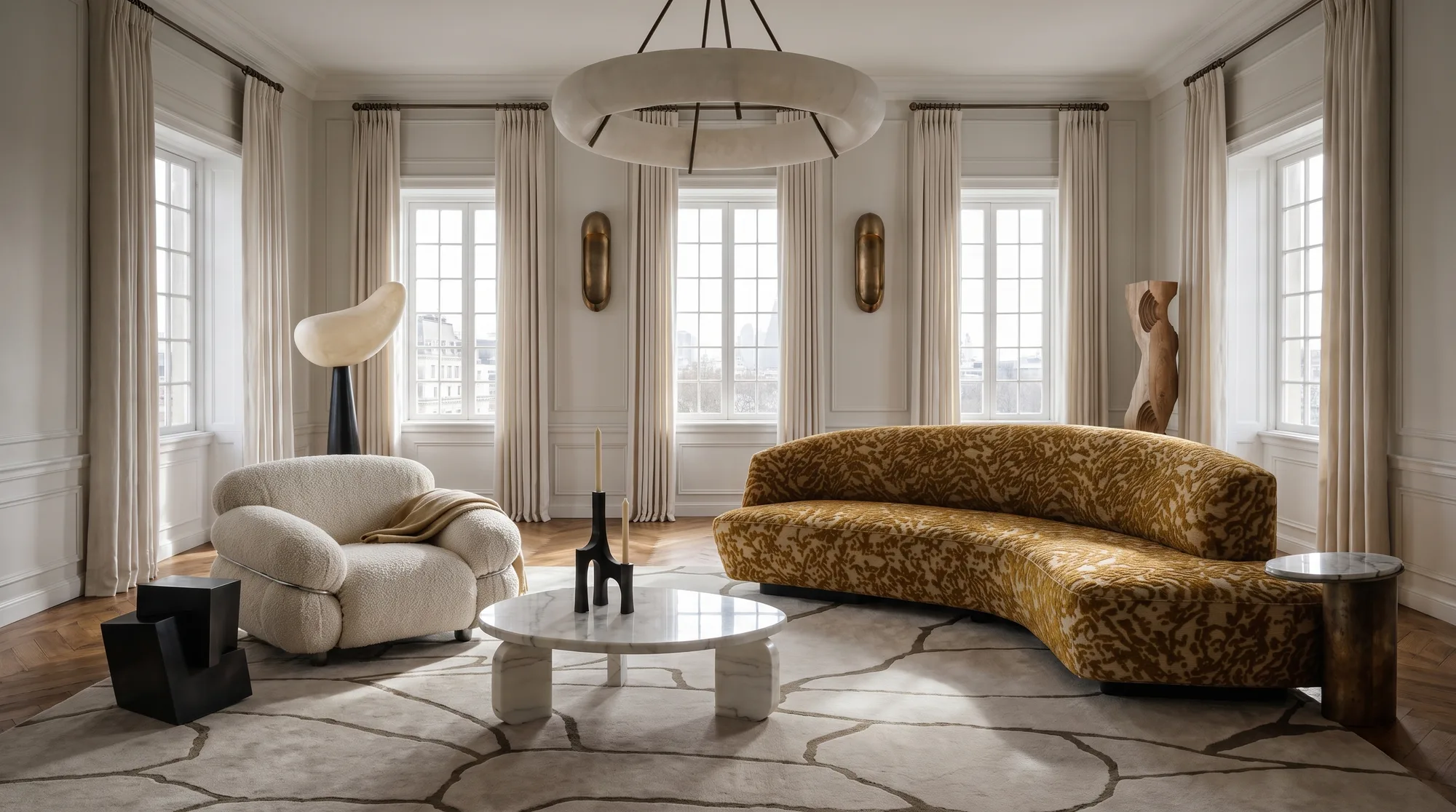
Look at the study above again. The bookcase, bouclé chair, wall relief and parquet match the collage. But the scooter figurine turned into a hand sculpture, and books and a vase appeared on the shelves: the AI filled the shelves so the shot looks lived-in. In the living room, the sofa fabric pattern changed slightly.
- Usually kept: large furniture, its shape, color and material, the layout, the base windows and floor.
- May change: small decor, fabric patterns, exact proportions, the number of items on shelves.
- To keep an important item from drifting – make it bigger in the collage, attach its separate photo and name it in the request.
Not just photos: sketches and watercolor
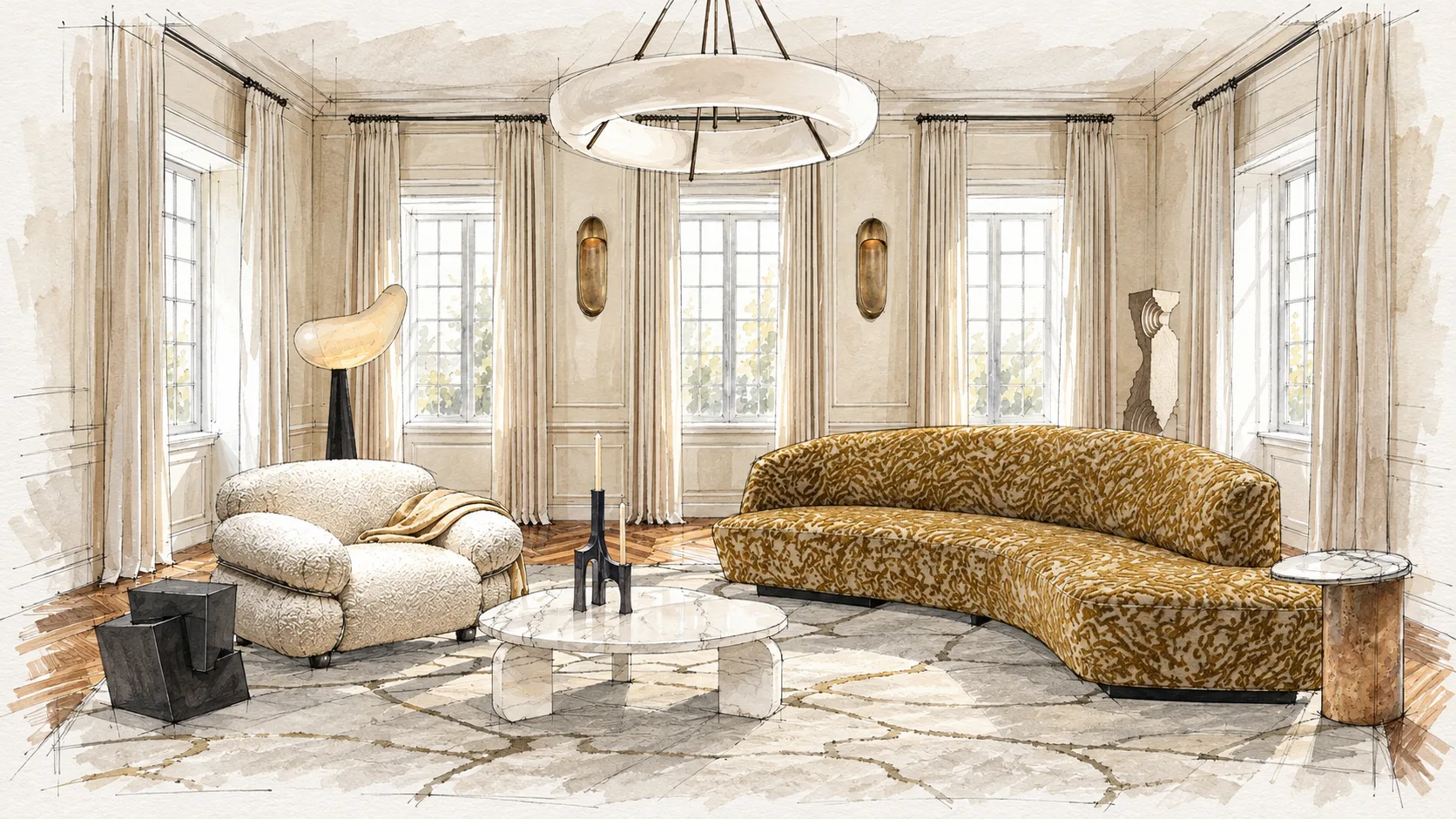
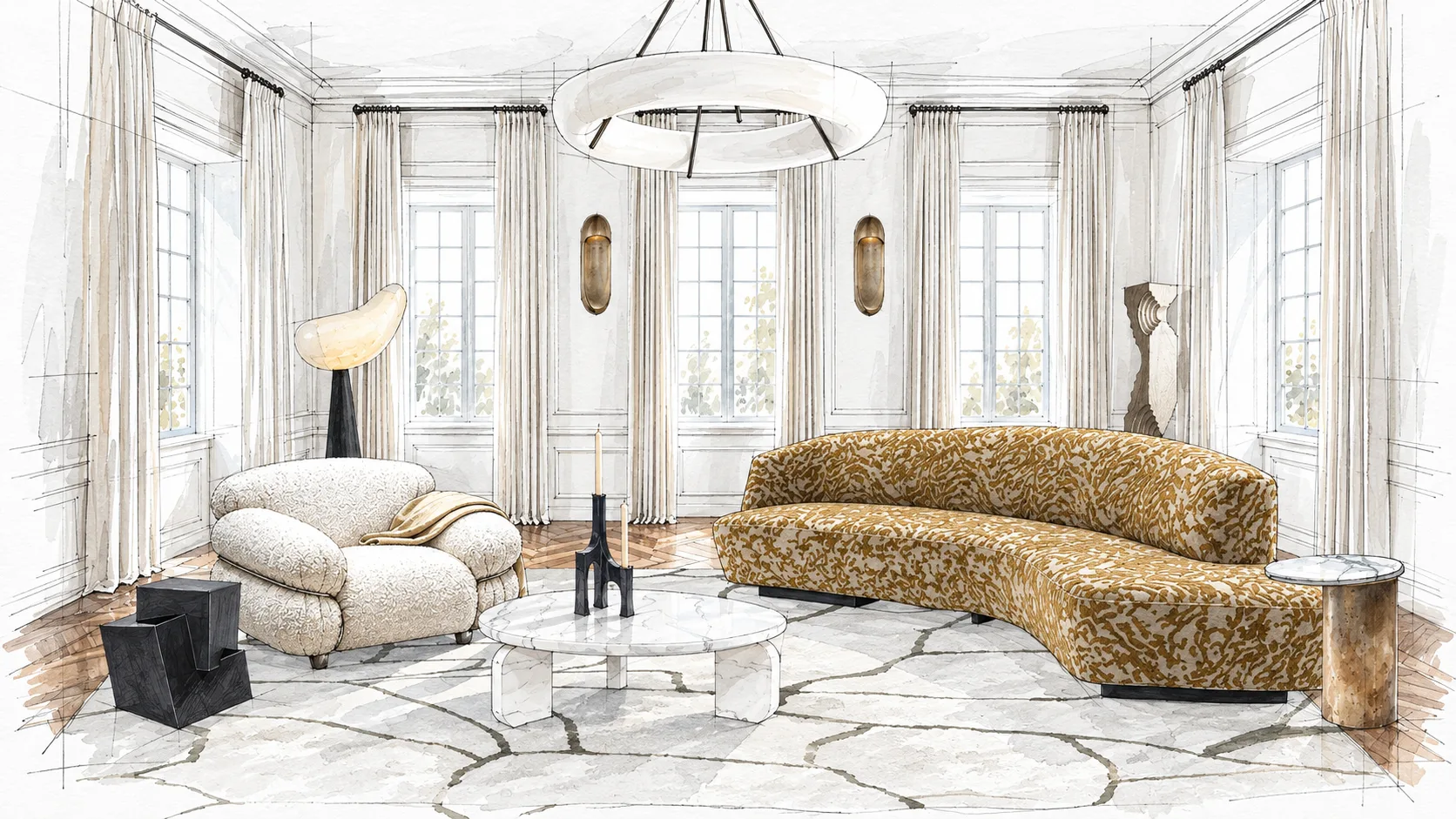
The same collage can become a sketch – soft pencil, marker with watercolor, or a clean 3D sketch. A sketch works well at a first meeting: the client sees the idea without fixating on details that aren't chosen yet.
All project steps – from collage to final photos – are on the Examples page. How the editor works – on the mood board and collage page.
FAQ
How long does it take to turn a collage into a photo?
The generation itself usually takes about a minute, sometimes longer when the model is busy. Most of the time goes into the collage: picking items and arranging them. Allow about half an hour for your first project, variants included.
Will the AI keep my furniture exactly as in the collage?
Large pieces – shape, color, material and layout – are usually kept. Small decor, fabric patterns and proportions may change a little. This is a visualization for ideas and approvals, not a drawing: the AI does not keep exact dimensions.
Which AI model should I use for a collage?
For the final photorealistic image – the one that keeps details best (Alina's photo prompts use Nano Banana Pro). For drafts and ideas – an affordable one: make several variants, then redo the best in the stronger model.
Can I use furniture photos from online shops?
Designers do this for working collages and client presentations. If you publish the image, remember that product photos belong to the shop or the manufacturer.
Do I need Photoshop to build a collage?
No. You build the collage in the editor right on the site: backgrounds are removed in one click, layers can be moved and labeled, and the finished collage downloads as JPG or goes to generation in one click.