How to Stop AI from Moving Walls and Windows
One “loft style” request, short and with a “what to keep” list, in two models: without the list the mouldings and a wall disappeared, with it the room stayed intact. Rules that work.
· 5 min read · CreateViz AI
You ask for “loft style” – and along with the furniture the AI removes the mouldings, adds a concrete column and runs pipes across the ceiling. For a designer that's a disaster: the client doesn't recognize their room. We tested why this happens and how to avoid it on one room and two models.
The test: a short request vs a list
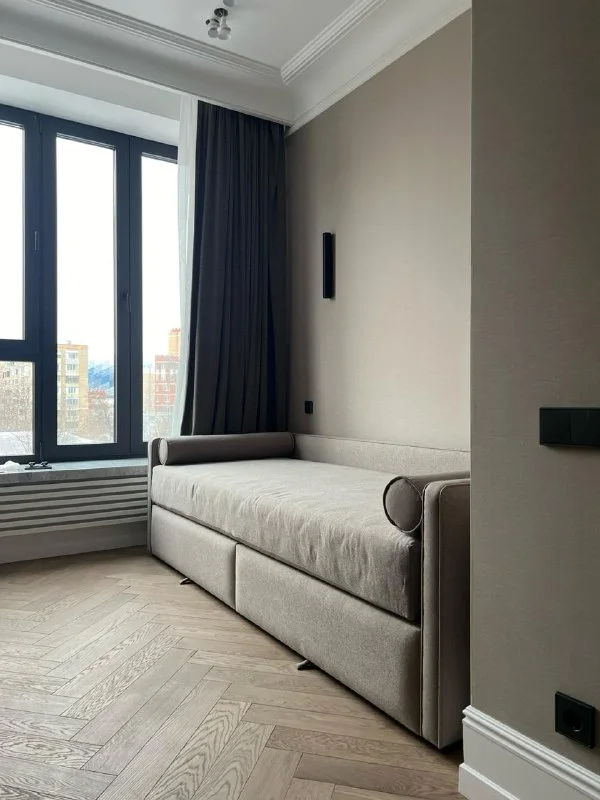
Source photo
Short request: the room became a different one
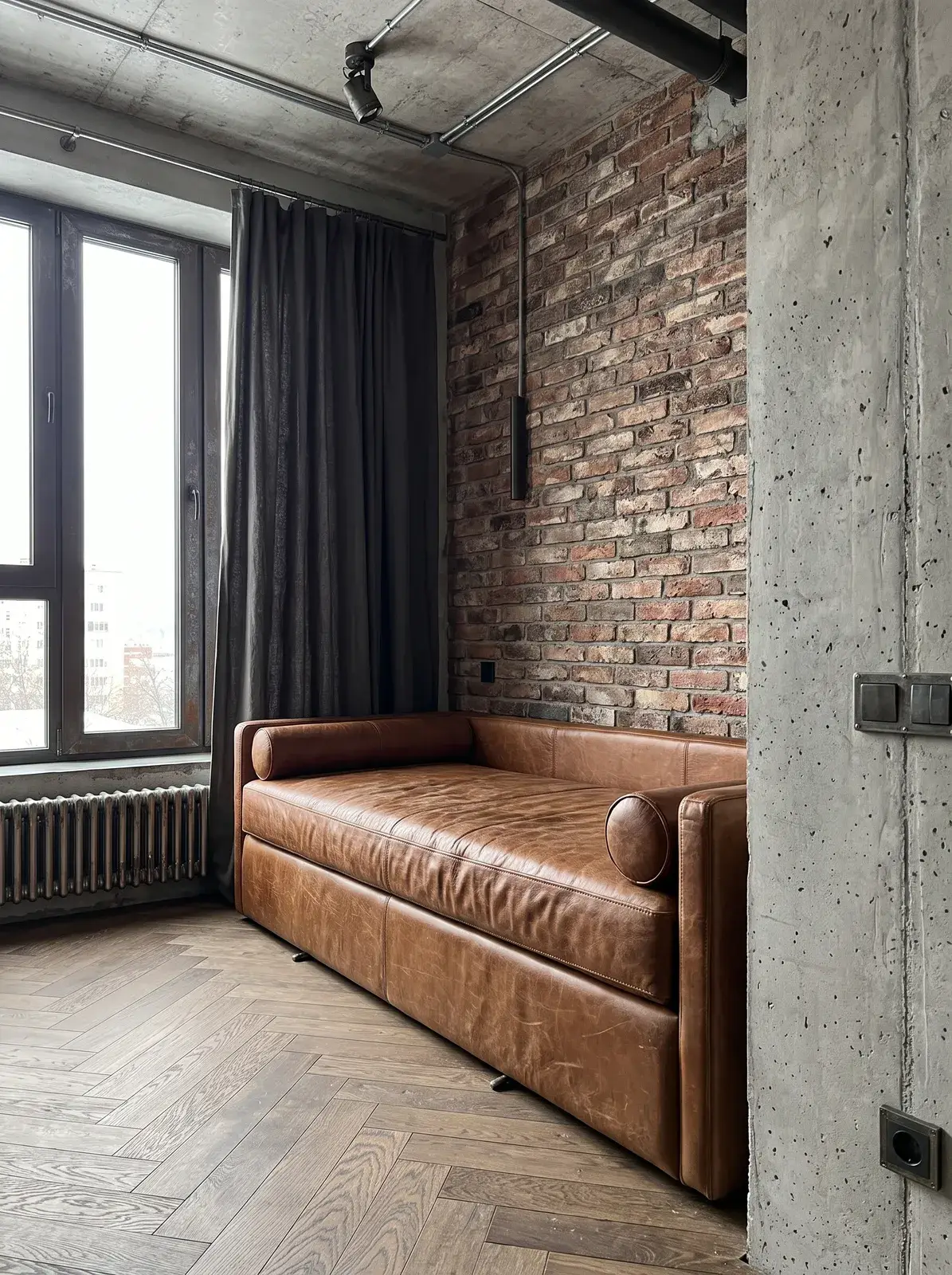
Nano Banana 2.1, short request
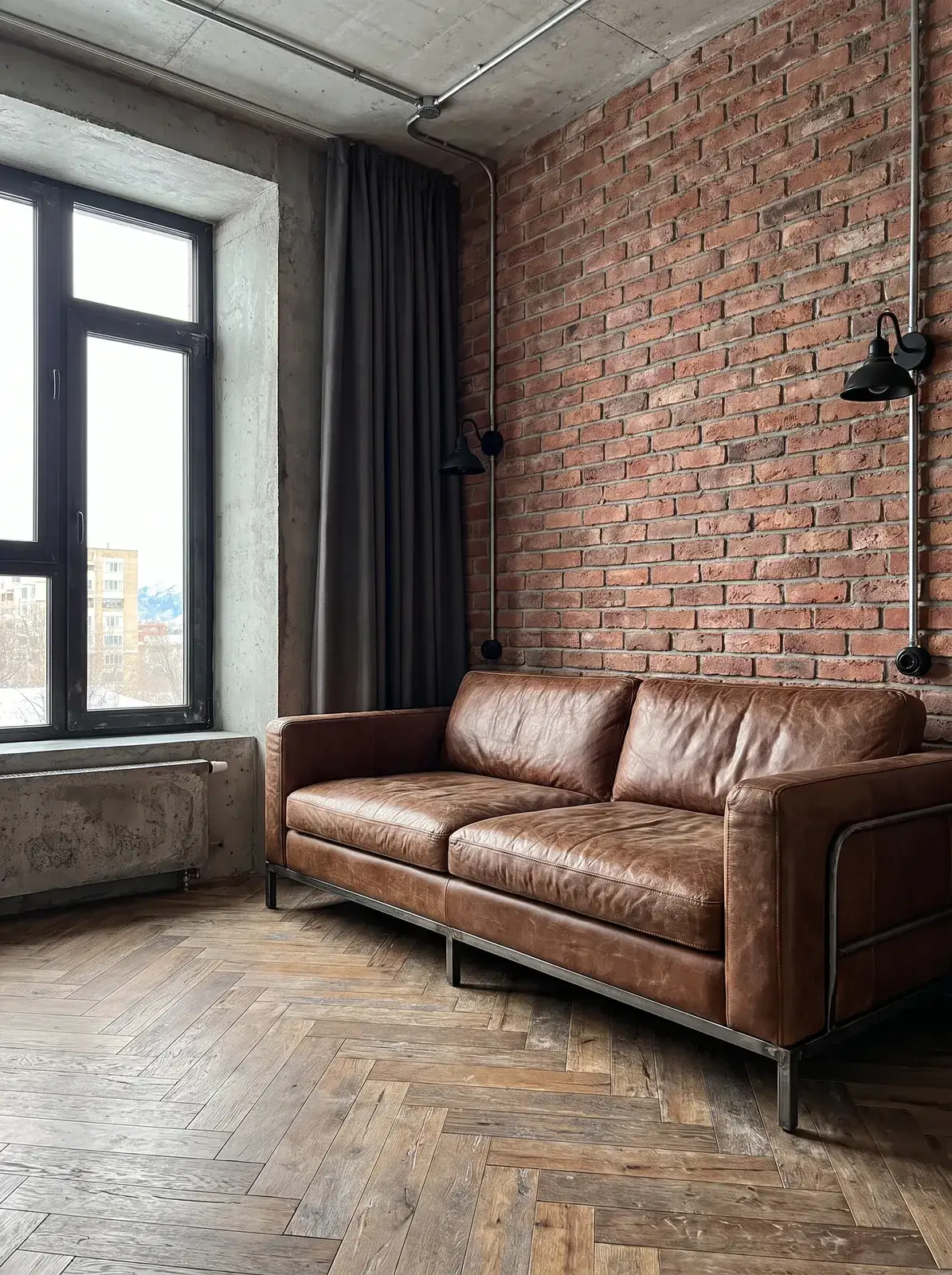
Nano Banana Pro, short request
- Both models removed the mouldings and the white ceiling – concrete and pipes instead, as in a “real” loft.
- Nano Banana 2.1 turned the right wall into a concrete column, and Nano Banana Pro removed that wall altogether – no such room exists in the apartment.
- The window and radiator are in place but changed too, and the room is no longer the one in the photo: you can't show it to the client as “yours”.
Request with a list: the room is intact
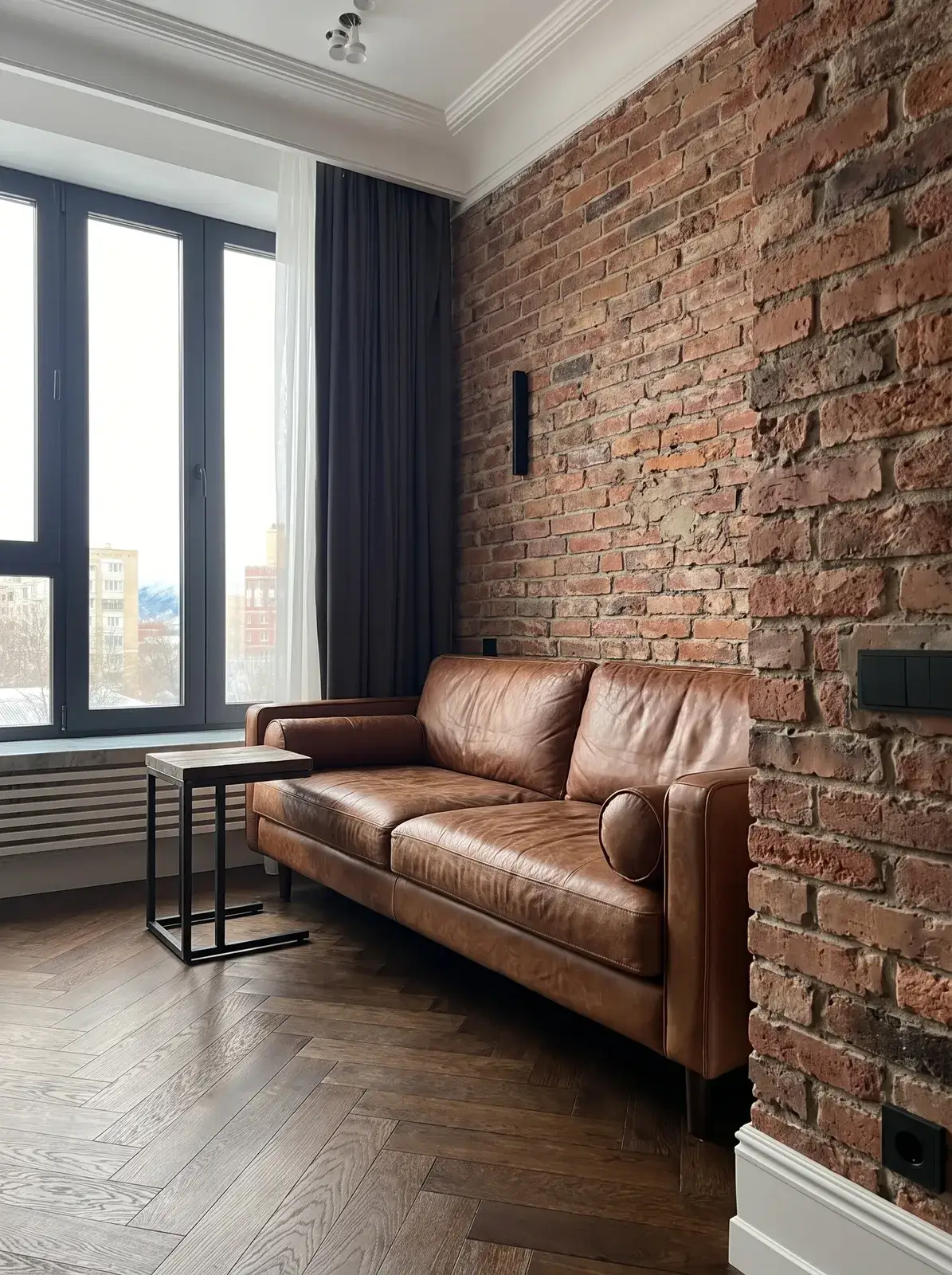
Nano Banana 2.1, with the list
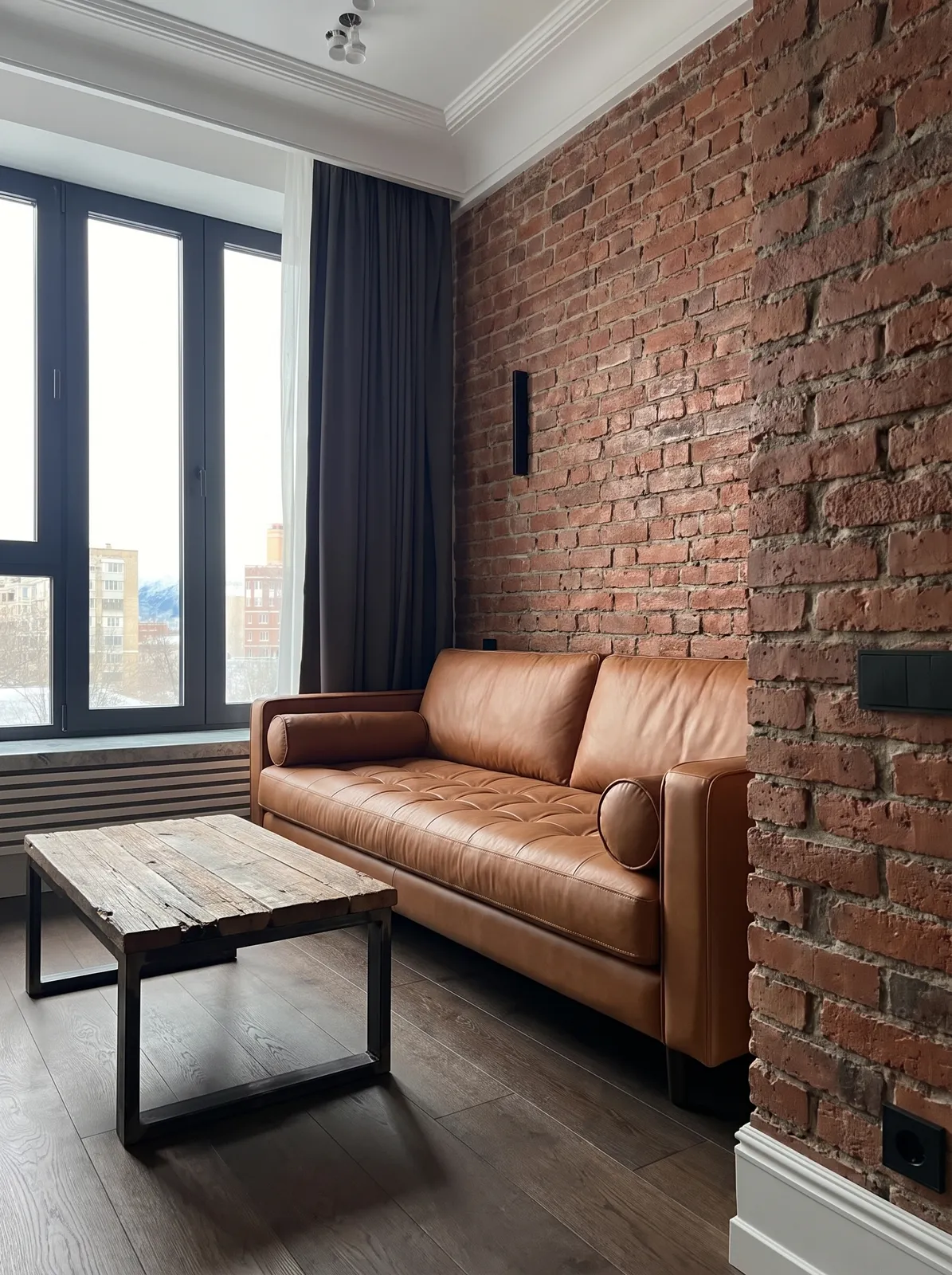
Nano Banana Pro, with the list
- The mouldings, white ceiling, framed window, curtains, radiator, switch and socket are in place for both models.
- The loft look comes from finishes and furniture: brick on the right wall, a dark floor, a leather sofa, metal. That's an honest “loft in this apartment”.
Rules that work
- List specifically: “the walls and their shape, the framed window, the doors, the ceiling with mouldings, the radiator, the sockets”. A general “change nothing” works worse.
- Say what may change: “change only the finishes, floor and furniture”. That gives the AI boundaries.
- Don't ask for a whole style if it conflicts with the architecture. Instead of “loft” – “brick on the right wall, a dark floor, metal”.
- Camera angle – in every request: “keep the camera angle”. Otherwise the AI may “step back” and invent more room.
- Check the result against the source: windows, doors, niches and sockets are the first things to change unnoticed.
| Instead of | Write |
|---|---|
| “Make it loft style” | “Right wall in brick, dark oak floor, leather and metal furniture” |
| “Don't change anything” | “Keep the walls, windows, doors, ceiling, radiator and sockets” |
| “Make it more spacious” | “Light walls, less furniture, a mirror on the left wall” |
More on the parts of a request – in the article “How to write interior prompts”. Examples of working from a room photo – on the AI room design page.
FAQ
Why does the AI change walls and windows?
It redraws the image rather than editing the photo. If the request names a style that “usually looks different” (loft – concrete and pipes), the AI adapts the architecture too. A list of what to keep stops that.
Which model keeps the layout best?
In our tests, with a “what to keep” list both Nano Banana Pro and Nano Banana 2.1 kept the room. Without it, both changed it. The request matters more than the model, but on complex photos Nano Banana Pro is more careful.
Can AI do a layout change from a photo?
Show the idea – yes: “remove the partition on the right”. But the AI doesn't know dimensions or load-bearing walls – it's an image, not a project. Layout changes are checked against drawings.