Getting Real Dimensions When Turning Photos into 3D Models
Why a photo can't tell the size, how to set width, depth and height, what the AI does without dimensions, where to get the numbers and how to check the model in 3ds Max, SketchUp and Blender.
· 4 min read · CreateViz AI
A 3D model from a photo is useless in a scene if a chair comes out the size of a sofa. A photo can't tell you the size: there's no scale in it. Here's how to get a model in real dimensions in CreateViz AI, where to get the numbers and what the AI does when there are none.
Three sides – three numbers
The model is fitted along all three axes separately: width, depth and height are each set exactly. Fitting by height alone can leave the AI's proportions noticeably off in depth – critical for furniture against a wall.
| What you enter | What you get |
|---|---|
| All three sides | Every side exactly as entered |
| One or two sides | Entered ones exact, the rest by the model's proportions |
| Nothing | The AI estimates the size from the photo – roughly |
Two examples
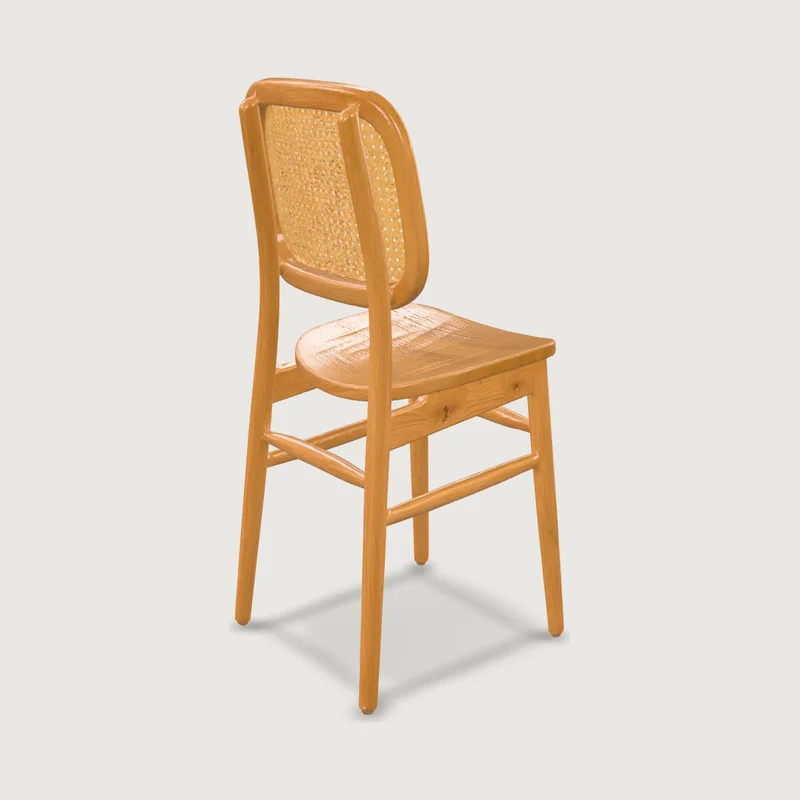
Chair: dimensions entered
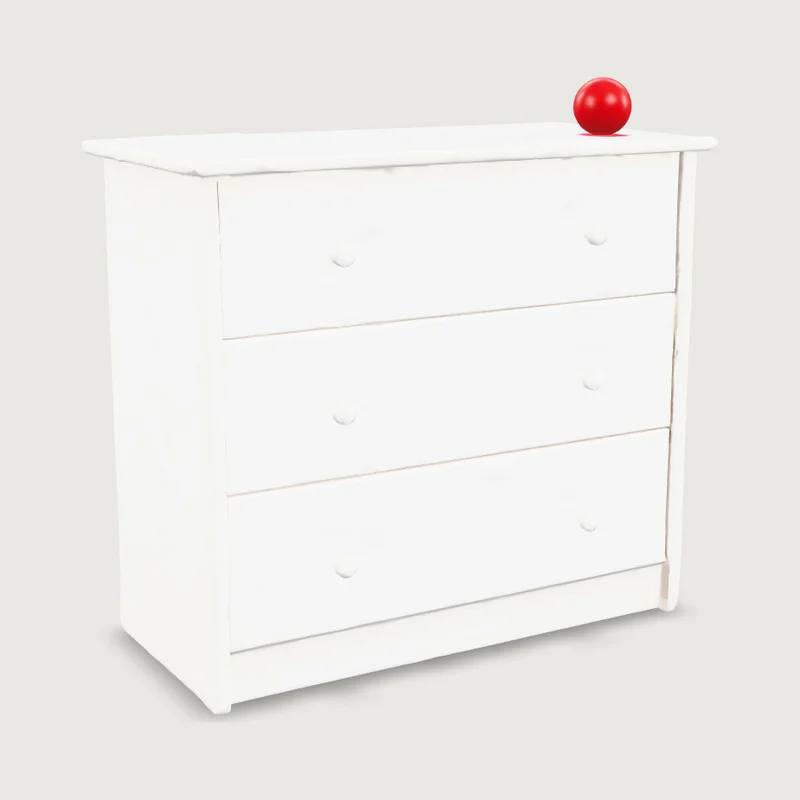
Chest: dimensions estimated by the AI
- Chair: we entered 45 × 50 × 82 cm (width × depth × height). This chair is deeper than it is wide, so the site treated the larger side as the width and the model came out 50 × 45 × 82: the same numbers on the right axes. Height 82 cm – exact.
- Chest: no dimensions entered, the AI estimated 80 × 40 × 80 cm from the photo. Plausible for a typical chest, but the real one may differ by a few centimeters – if you know the sizes, enter them.
Where to get the dimensions
- The product card in a store or catalog – it usually lists W × D × H.
- A price tag, catalog page or drawing – upload a photo to “Sizes from a photo”, the AI finds the numbers and asks you to confirm.
- A tape measure – if the object is yours or the client's. You can dictate: “width eighty, depth forty, height eighty-five”.
- Inches – switch the fields to inches; “Sizes from photo” converts millimeters from a price tag or drawing to centimeters itself.
How to check in your app
- Open the file: FBX in 3ds Max, GLB in SketchUp or Blender, OBJ in other apps.
- Check the scene units: FBX is in centimeters, GLB and OBJ in meters.
- Measure the bounding box with the tape tool or selection box – it should match what you entered.
- The pivot is at the bottom center: the model stands on the floor without adjustment.
The price doesn't depend on the size: “Wide shot” – 30 credits, “Detailed” – 80 credits, and resizing a finished model is free. Everything about models from photos – in the article “3D furniture model from a photo” and on the 3D model from a photo page.
FAQ
Can I get a 3D model from a photo in exact dimensions?
Yes, if you know the dimensions: enter the width, depth and height – each side of the model will match exactly. From a photo alone the AI only estimates them.
Will dimensions in inches work?
Yes. Switch the fields to inches – the site converts to centimeters (1 inch = 2.54 cm). FBX is saved in centimeters, GLB and OBJ in meters; the sizes match after import.
Can I change the size of a finished model?
Yes, for free: “Change sizes” on a finished model – the files are rebuilt without a new generation. Sides you enter become exact, empty ones keep the proportions.